Testplane v8 → v9
What has changed?
Testplane 9 includes major upgrades to visual testing capabilities, better globals handling and various enhancements across the board. See our blog post for more details.
Migration guide
1. Check system requirements and update Testplane
Testplane 9 requires Node 22 or newer. We recommend latest 22.x (or newer), but at the very least 22.12.
Install Testplane 9:
npm install -D testplane@9
2. Handle visual checks changes
Accept changed assertView screenshots
Testplane 9 introduces a new screenshot engine, that's aimed to improve visual checks reliability and correctness of captured screenshots.
You can expect around 5% of assertView screenshots to change, and often it's enough to just accept them all. To accept changed screenshots, you can:
- Use HTML Reporter to review and accept changed screenshots (recommended)
- Run
testplane --update-refs, which will update all references
If you notice some undesired changes in your screenshots, check the Common issues section below or, if you can't find a solution, let us know in github issues or community chat in Telegram.
selectorToScroll option is deprecated
The assertView in Testplane 9 automatically detects element to scroll, so you should avoid passing this selector manually.
You can keep using selectorToScroll, but after migrating various large projects to Testplane 9, we didn't find a single case where selectorToScroll option was actually useful, and if an incorrect selector was passed, it does only harm.
You can now take screenshots of pseudo elements
If you relied on workarounds to capture screenshots of pseudo elements, you can now do it natively:
await browser.assertView("menu-highlight", "[data-testid=menu]::after");
One common use case for this is to capture screenshots of background highlights/outlines that appear around list/menu items on hover.
You can now crop screenshots with cropMargins
If you relied on hacks to crop screenshots, for example to crop scrollbars on android emulators, you can now do it natively.
For example, to crop scrollbar on android emulators, you can do this:
export default {
    browsers: {
        browserName: "android-webview",
        platformName: "android",
        assertViewOpts: {
            cropMargins: { right: 16 },
        },
    },
};
3. Update globals handling in TypeScript
Testplane 9 doesn't pollute global type space with it, describe and other globals. There are two ways to handle this.
If you prefer the way it was before
Install a tiny package with global type definitions:
npm install -D @testplane/globals
Then add it to your tsconfig.json:
{
    "compilerOptions": {
        "types": ["@testplane/globals"]
    }
}
Make sure to remove testplane from types array if it was there before.
Alternatively, you can use triple-slash directive in any of your TS files: /// <reference types="@testplane/globals" />.
If you prefer explicit imports
You can import the globals explicitly:
import { it, describe } from "testplane";

describe("my test", () => {
    it("should do something", () => {
        /* ... */
    });
});
4. Do not use automationProtocol: "devtools"
Testplane 9 no longer supports "devtools" value for automationProtocol option. It was a source of all sorts of issues for a while, and there are better alternatives for all features it provided:
- To use testplane with local browsers, use
gridUrl: "local", read more here - To use CDP, either use Puppeteer via
browser.getPuppeteer()or use experimental CDP API viabrowser.getCDP()
5. If you use Testplane programmatically, await the Testplane.create() call
The Testplane.create() call is now asynchronous, so you need to await it in Testplane 9:
| Testplane v8 | Testplane v9 |
|---|---|
| |
You will probably need to update packages that create Testplane instances to versions that are compatible with Testplane 9.
Common issues
If you are fine with updated screenshots, you can safely skip this section. It describes common questions about the new screenshot engine.
Hover effects gone on some screenshots
In Testplane 9, assertView has disableHover option and by default it turns on if scrolling is needed to capture the screenshot (when target element doesn't fit into the viewport or its scrollable parent):
| Expected | Actual | Diff |
|---|---|---|
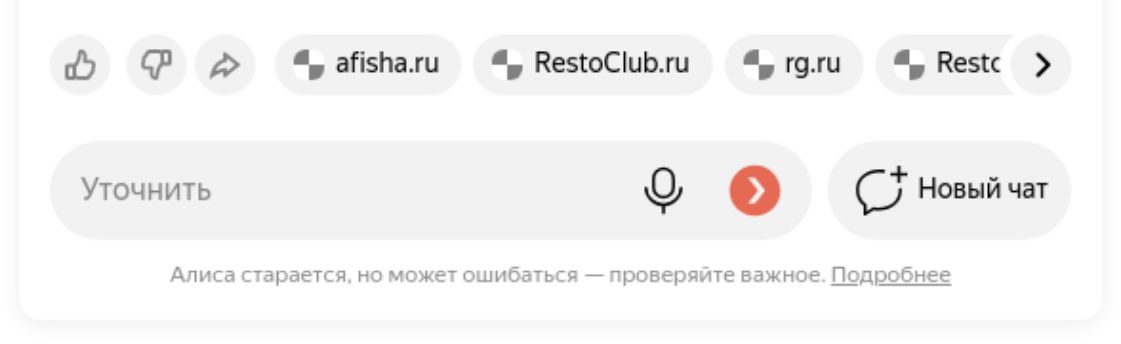 |  |  |
Almost always that's a good thing, because keeping hover effects may lead to artifacts like multiple hovered elements in one screenshot or half-hovered elements.
However, if you want to bring old behavior back, you can pass disableHover: "never" option like this:
await browser.assertView("menu", "[data-testid=menu]", {
    disableHover: "never",
});
Tooltips, popovers, action menus or similar elements gone on some screenshots
If you have an element that hides as soon as scrolling occurs, which is common for tooltips, popovers, action menus or similar elements, such elements may disappear from the screenshot:
| Expected | Actual | Diff |
|---|---|---|
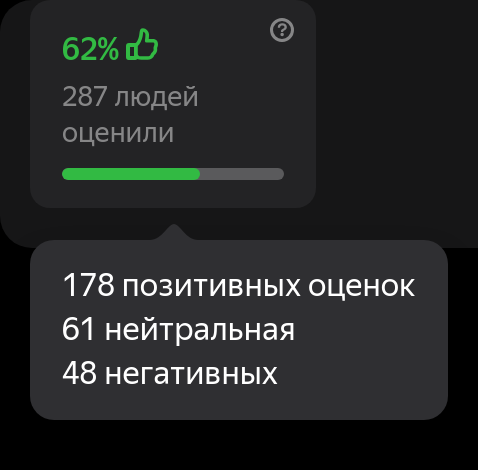 |  |  |
This is caused by the new interference avoidance and scrolling logic, that in rare cases may scroll slightly, causing elements to disappear.
You can completely disable scrolling during screenshot capture like this:
await browser.assertView("menu", "[data-testid=menu]", {
    captureElementFromTop: false,
    allowViewportOverflow: true,
});
In short, the new "interference avoidance" logic works like this:
- Compute "safe area", that is free of sticky, fixed, and other interfering elements that are not part of the target element. Areas near border radiuses inside scroll containers are also considered unsafe, as they will leave "corners" on the screenshot when scrolling.
- At all times during the capture, the engine will try to keep the target element within the safe area. This means that even if the target element is fully in the viewport, it may be scrolled to fit into the safe area.
assertView now captures a different area
Most probable reason is that Testplane 8 area was actually incorrect. So double check your selectors and element positions (for example, using Time Travel) — probably you'll find out that it's actually become correct now.
We've seen cases where Testplane 8 screenshot was just a picture of some interfering element on top, unrelated to target, that's fixed now.
The other reason might be that you are using a custom command on top of assertView, that draws transparent overlay on top of the page and screenshots that. Some projects used this workaround to screenshot pseudo-elements or crop scrollbars. In that case, we recommend to use bare assertView instead.
Elements that used to render on top of the target element are gone
Before, you could have screenshots with elements that are sticky/fixed, render on top and accidentally got captured in the screenshot:
| Expected | Actual | Diff |
|---|---|---|
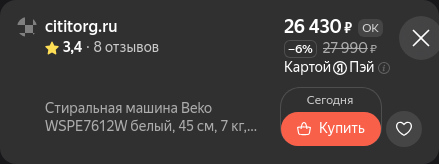 | 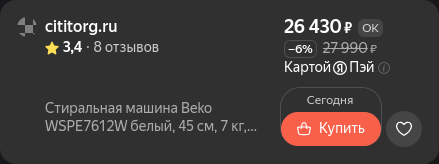 | 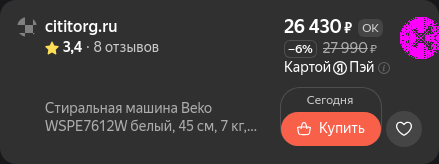 |
This is intended, and exactly what the "interference avoidance" logic is designed to do.
If you want those elements back, explicitly list those elements in target selectors:
- await browser.assertView("price-card", "[data-testid=price-card]");
+ await browser.assertView("price-card", ["[data-testid=price-card]", "[data-testid=close-button]"]);
Here, we'd screenshot the minimal area that covers both the price card and the close button.
Alternatively, you can disable scrolling (and hence interference avoidance) by setting captureElementFromTop: false and allowViewportOverflow: true options.
Sudden move target is out of bounds errors, failures to click on elements, etc.
In Testplane 8, assertView would scroll the target element into view if it was not visible, take screenshot and leave the page in the mutated, scrolled state.
In Testplane 9, assertView restores the page to the original state after taking the screenshot, even if scrolling took places.
This means that if you were relying on the page being scrolled after assertView, it will no longer be the case and you have to handle it manually:
await browser.assertView("price-card", "[data-testid=price-card]");

await browser.$("[data-testid=buy-button]").scrollIntoView();
await browser.$("[data-testid=buy-button]").moveTo();
/* ... */
Note: assertView still scrolls the target element into view if it was not visible, the difference is that it doesn't leave the page in the mutated state.
Support
If you encounter any problems during the migration or have any questions, come to github issues - and we will definitely help you!